Placing a WorldView 3D Tasking Request
The instructions on this page apply to orders placed through the Hub user interface only. It does not apply to orders placed via the Ordering API.
You can request a new stereo collection, or a "collect," to meet mission requirements for recent or frequently viewed imagery over a small geographic area.
With WorldView 3D tasking, you can task Vantor's on-demand suite of three-dimensional surface mesh, elevation, and true ortho products that correspond to specific collection dates. WorldView 3D leverages photogrammetric stereo collections that are correlated and enhanced by Vantor’s global Vivid Terrain 3D Surface Model.
-
Do one of the following, depending on the part of the interface you are using:
-
Select Tasking. The Tasking panel opens.
-
Areas Panel Next to the area you want to task, select the menu
 , then select Order New Collect (Single)
 .
. -
Viewport Right-click in any existing area (e.g., polygon, rectangle), then select Order New Collect.
You can also access WorldView 3D tasking from the Vivid Terrain panel. Select WorldView 3D, then select Order. In the Stereo Pairs step, select WorldView 3D tasking request.
The Tasking wizard opens.
-
-
Complete each page of the WorldView Tasking wizard to define the parameters in your tasking request.
 General
-
Make basic selections for your tasking request.
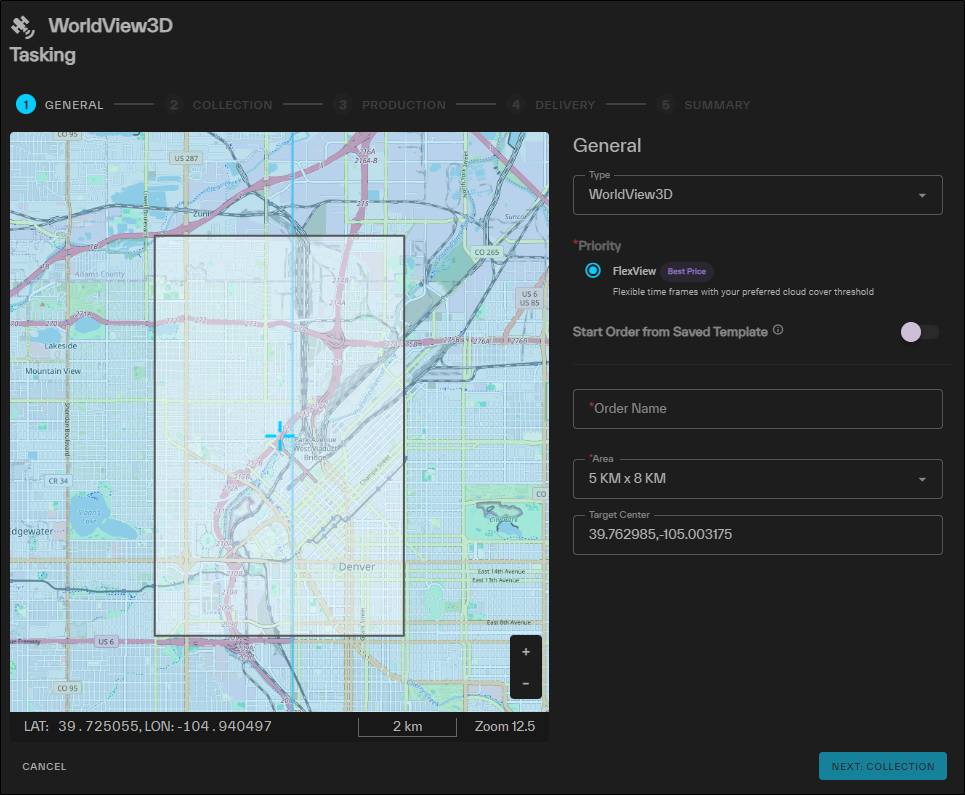
The General step for tasking requests.
- Type Select WorldView 3D.
-
Tasking Priority Select your desired tasking priority.
Options
-
FlexView Flexible time frames with your preferred cloud cover threshold.
More About FlexView
-
Flexible collection windows set by the customer, up to 365 days.
-
Cloud cover protection (default: <15% cloudy), with customizable parameters like resolution, ONA, and azimuth.
-
AOI sizes can range from small single-image areas to large regions (up to 10,000 sq km).
-
Orders can be placed up to 365 days in advance.
-
Manual feasibility checks.
-
Orders can be modified or canceled at any time, but the customer will be charged for any partial collections that meet specifications.
-
-
-
Start Order From Saved Template(Optional) If you want to use a previously saved template for the order, select Start Order From Saved Template, then select a template from the from the Select Template drop-down.
When using a template, be sure to verify all fields as you progress through the wizard, as some selections may not be included in the template. For example, you are still required to select an area and set the collection window, even when you are using a template. You can also edit the pre-populated selections in a template, so reviewing each field allows you to make one-off changes as needed.
To clear a template selection and reset all fields, select
 .
. -
Order Name A name for the order.
-
Area Select the area you want to use for your tasking order.
-
Standard Sizes Standard sizes depend on the Priority you selected.
-
FlexView Use a pre-determined size for your area.
-
5 KM x 8 KM
-
8 KM x 10 KM
-
8 KM x 20 KM
-
5 KM x 20 KM
-
10 KM x 100 KM
You can drag the area to reposition it, or select a different size area.
-
-
WorldView 3D tasked AOIs must use one of the predefined rectangular tasking templates. Supported boxes range from 40 km² to 1,000 km². Freeform polygons are not supported for WorldView 3D tasked orders.
The selected tasking box defines the submitted/priced tasking area, but final WorldView 3D production coverage may be smaller depending on stereo overlap, cloud cover, image quality, and reference data availability. Some sensors/geometries may not provide usable stereo overlap across the full width of wider boxes, so edge strips may not contain 3D/elevation data.
-
-
Target Center The center point coordinates of the area. If you want to adjust the target's center point, enter coordinates in the field.
Drag the crosshairs in the tasking viewport to automatically adjust the Target Center coordinates.
-
Select Next: Collection.
Collection
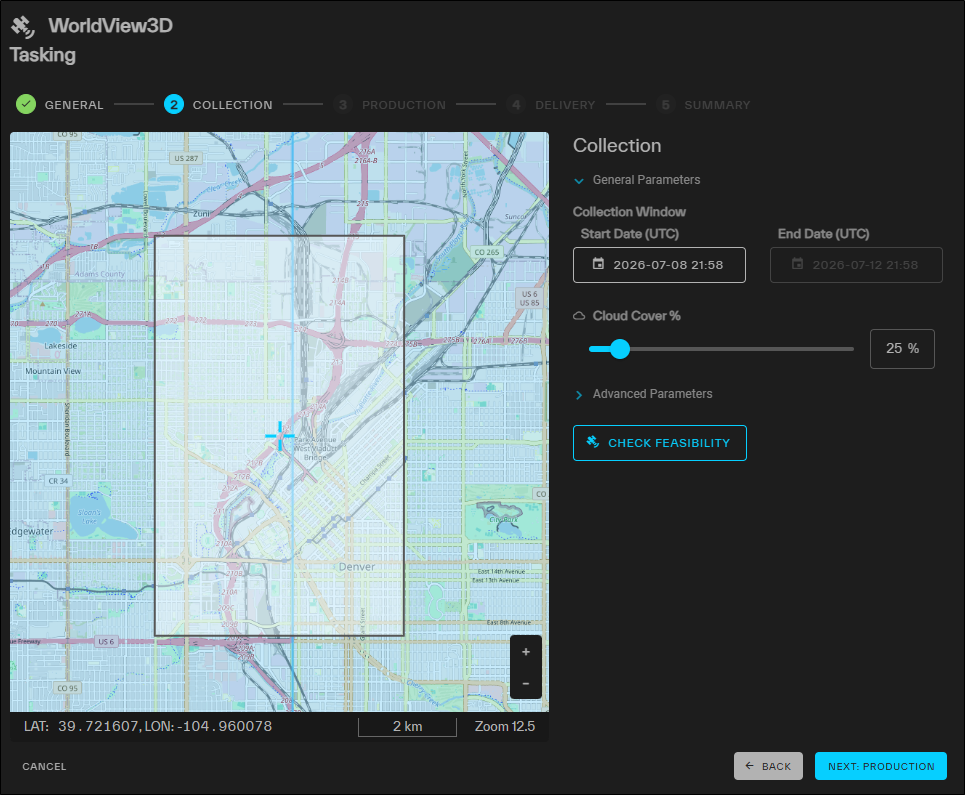
The Collection step for tasking requests.
-
Expand each parameter drop-down to define your desired collection parameters.
General Parameters
-
Collection Window Use the calendar picker to select the collection window, then select Confirm.
-
Select a time zone to change how time displays in the calendar picker.
-
Weather data is available for FlexView collections up to 10 days in advance of the current date, and can be used to help determine the best collection window. On the calendar, hover over a date displaying weather data to see expected average cloud cover for that date.
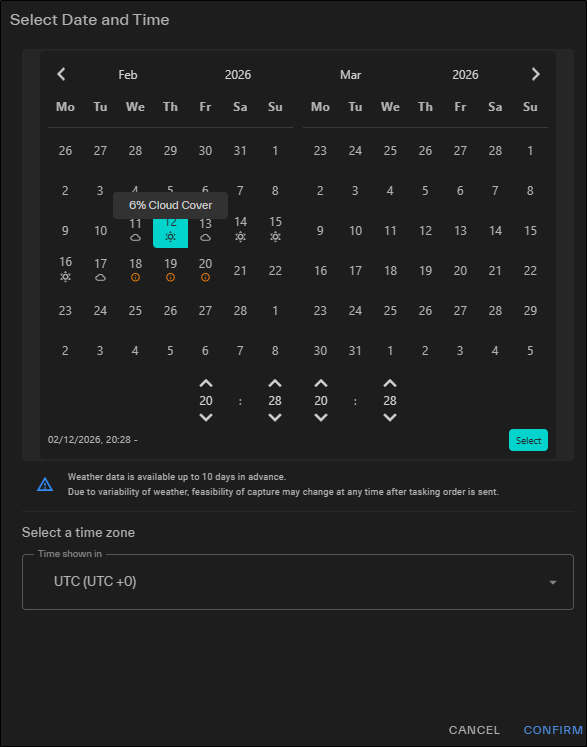
Hover over a date displaying weather data to see expected cloud cover for that date.
Due to the variability of weather, feasibility of capture may change at any time after the tasking order is sent.
"Partly cloudy" displays if expected cloud cover is 21% – 59%.
-
- Cloud Cover (FlexView: 15% – 100%; FlexView default: 15%) Use the slider to set the maximum cloud cover percentage.
Advanced Parameters
-
Off Nadir Angle (0° – 45°; default: 30°) Use the slider to set the maximum angle of the satellite in relation to its target.
-
Min Sun Elevation Angle(9° – 90°; default: 30°) Use the slider to set the minimum sun elevation angle.
-
Target Azimuth (0° – 360°) The allowable range of the azimuth of the target. Azimuth is measured from north in clockwise degrees.
In the Start and End fields, enter your desired values, or drag the double-ended slider along the compass to set the values.
To swap the Start and End values, select
 .
.To reset the Start and End values, select
 .
. -
Convergence Angle(30° – 60°; only available for EO Stereo and WorldView 3D) Use the double-ended slider to set the range for the convergence angle.
-
Bisector Elevation Angle(60° – 90°; only available for EO Stereo and WorldView 3D) Use the double-ended slider to set the range for the bisector elevation angle.
-
Asymmetry Angle(0° – 20°; only available for EO Stereo and WorldView 3D) Use the double-ended slider to set the range for the asymmetry angle.
Check Feasibility
Before proceeding with your FlexView tasking order, you can do an initial feasibility check to see whether your tasking order is likely to succeed.
Always use the Check Feasibility button to find an available collection window with the best probability of success. If your selected window is not available, you will need to revisit the Collection step later. See Collection Feasibility.
-
Select Check Feasibility. A the probability of collection displays. Use this as a basis to make adjustments to your ordering constraints until you find a desirable probability outcome.
-
High Probability AOI is in a low-demand area, and cloud cover models are within 15% of customer request.
-
Medium Probability AOI is low-demand, but cloud cover estimate is only within 25% of customer request; or AOI is in a high-demand area and cloud cover estimate is within 15% of customer request.
-
Low Probability AOI is a low-demand area, but cloud cover estimate exceeds the request by 25% or greater; or AOI is in a high-demand area, and cloud cover estimate exceeds the requested cloud cover by 15% or more.
To improve probability of collection, consider reducing your ordering constraints.
-
-
If Check Feasibility provides alternate dates with a higher probability of collection, select Use Alternate Dates to automatically change your collection window to the recommended date range.
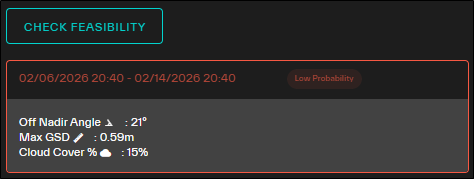
If Check Feasibility returns a low probability of collection, you may want to adjust your parameters to find a window that is more likely to succeed. You can also select Use Alternate Dates to automatically adjust your collection window to a range with a higher probability of collection.
When feasibility is low, the system may not always return alternative dates. The tasking service checks a 10-day window for dates with better feasibility. If a better window is not available, dates are not returned.
Collection Feasibility
After you complete the tasking wizard, if the date or time you selected is not available, the Collection Feasibility section becomes available and displays additional date and time options for your tasking order.
You will not see the Collection Feasibility section until after validating your date and time selection on the Summary tab. If your initial selection is not available, you can use the Collection Feasibility section to review alternative options.
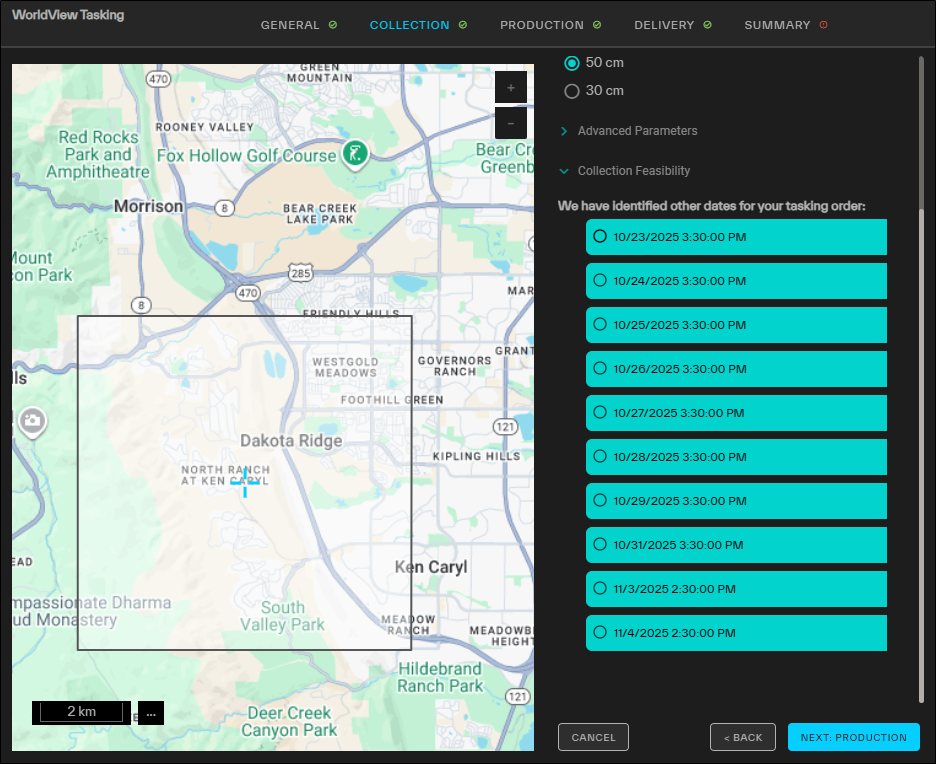
The Collection step for tasking requests, showing Collection Feasibility options.
-
Select a different date and time for your order.
-
-
Select Next: Production.
Production
The Production step for tasking requests.
-
For each option, define your desired production parameters.
-
3D Product Select the 3D Product you want to task. See Available Vivid Terrain, WorldView 3D, and Raptor Products.
-
Vertical System (DSM only) Select the vertical system you want to use.
Options
-
Ellipsoid
-
EGM2008
-
EGM96
-
-
Fill Shadows Select whether or not to enable fill shadows. Fill Shadows controls whether stereo-shadow voids are infilled with Vivid Terrain geometry/interpolation or left as No Data.
-
-
Select Next: Delivery.
Delivery
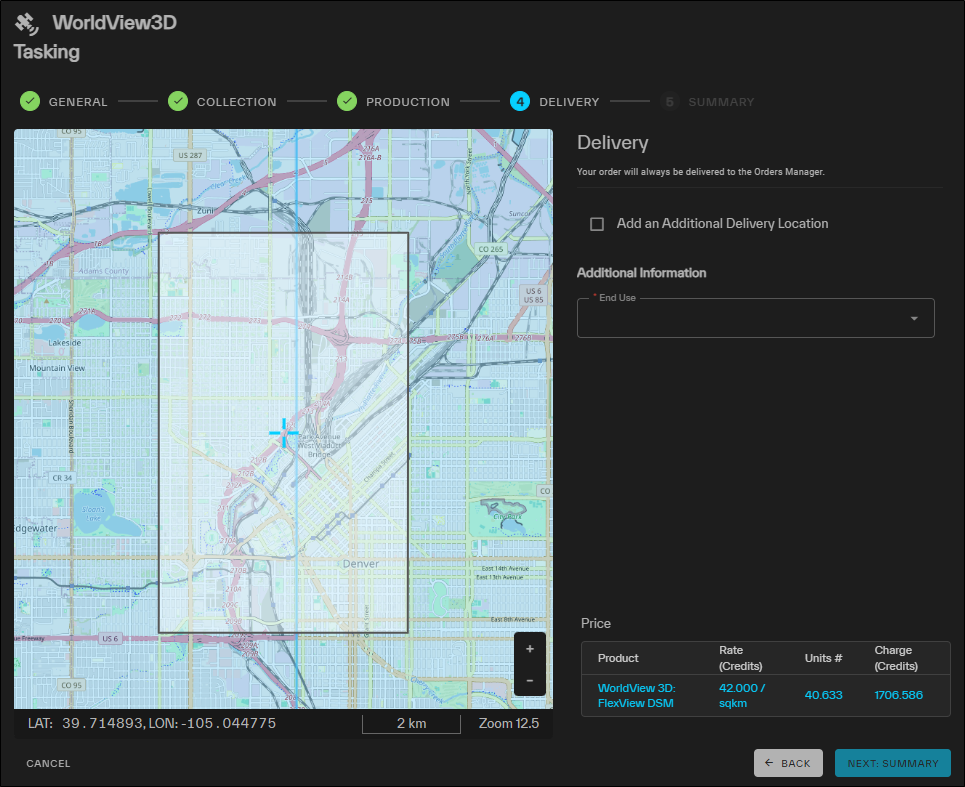
The Delivery step for tasking requests.
-
For each option, select your desired delivery parameters.
-
Add an Additional Delivery Location(Optional) Select an additional file transfer location for delivery of the tasked imagery.
Tasking requests are always delivered to the Orders Manager. Selecting an additional delivery location is optional.
Options
-
Choose Delivery Location Select from saved locations.
-
No Additional Delivery(Default)
-
STFP/FTPS Location
-
Select your protocol, then enter your credentials, host, port, and directory.
-
To verify the connection, select Test Connection.
A successful connection test is required to save the location and to
-
(Optional) To save the location to use again later, select Save as Location. The location is added to the Choose Delivery Location drop-down.
-
-
S3 Bucket
-
Enter your S3 bucket, folder, region, IAM access key, secret access key, and optional session token.
-
Use the Session Token field if you have a temporary STS token.
-
For regular access keys, leave the Session Token field blank.
Be aware that STS tokens are valid for a maximum of 12 hours. As such, STS tokens are best suited for manually sending an order to an additional location after the initial order has been completed.
Your S3 bucket must be in the AWS commercial cloud.
-
-
To verify the connection, select Test Connection.
A successful connection test is required to save the location and to
-
(Optional) To save the location to use again later, select Save as Location. The location is added to the Choose Delivery Location drop-down.
-
-
-
Enter your service key, bucket, and folder.
To select a service key from a location on your computer, select the paperclip
 .
. -
To verify the connection, select Test Connection.
A successful connection test is required to save the location and to
-
(Optional) To save the location to use again later, select Save as Location. The location is added to the Choose Delivery Location drop-down.
-
-
-
Enter your connection string, bucket, and folder.
-
To verify the connection, select Test Connection.
A successful connection test is required to save the location and to
-
(Optional) To save the location to use again later, select Save as Location. The location is added to the Choose Delivery Location drop-down.
-
-
-
End Use From the drop-down, select the end use that is appropriate for your tasking order.
-
-
Select Next: Summary.
Summary
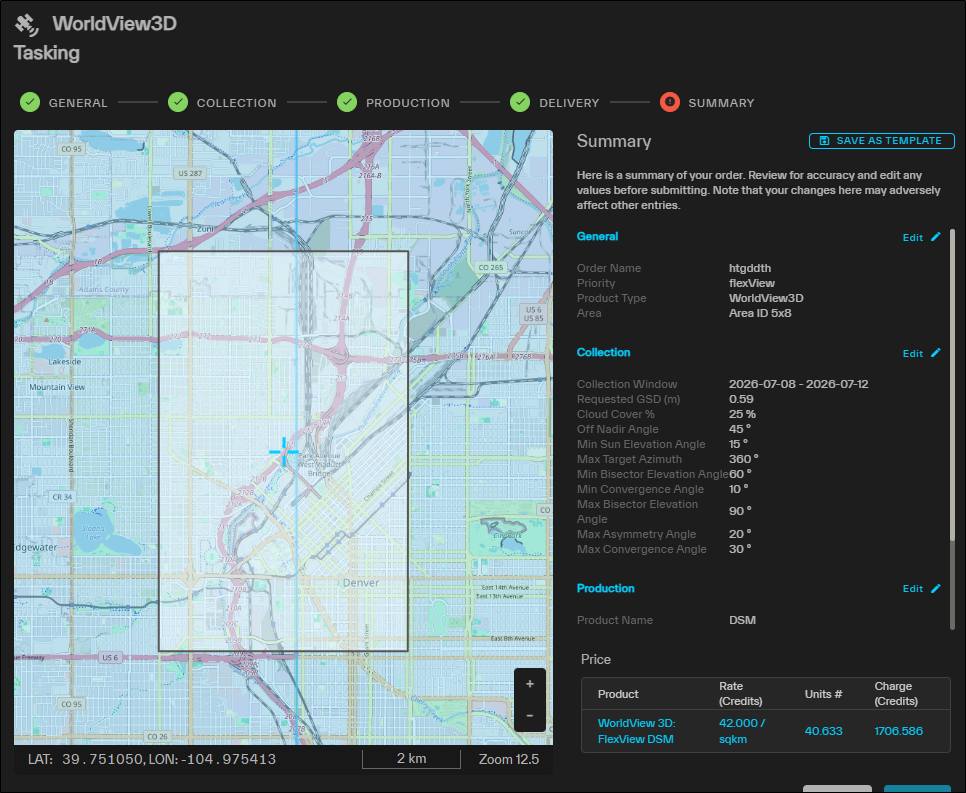
The Summary step for tasking requests, shown for an EO image.
A summary of your order displays the parameters you selected for your tasking request.
-
Do one of the following:
-
Place the Request Select Submit. A confirmation appears.
-
Make Changes Next to any section, select Edit.That section of the wizard opens so you can make changes.
If there is an error on the Collection step, you may need to check the Collection Feasibility drop-down for more suitable date and time options for placing your tasking order. See Collection Feasibility.
Making changes may affect parameters on multiple pages of the tasking wizard. Be sure to check each page for any updates before you submit your request.
-
As you make and update selections in the Tasking panel, the Price section at the bottom of each page of the wizard displays a real-time quote.
If you want to save your tasking request as a template to use later, select Save As Template. See Using WorldView Tasking Templates.
-
-
After placing the order, a final confirmation displays your order number
-
Close the Wizard Select Close.
-
Open the Orders Panel Select View Order. See Orders.
-
Place a New Tasking Request Select New Tasking Order.
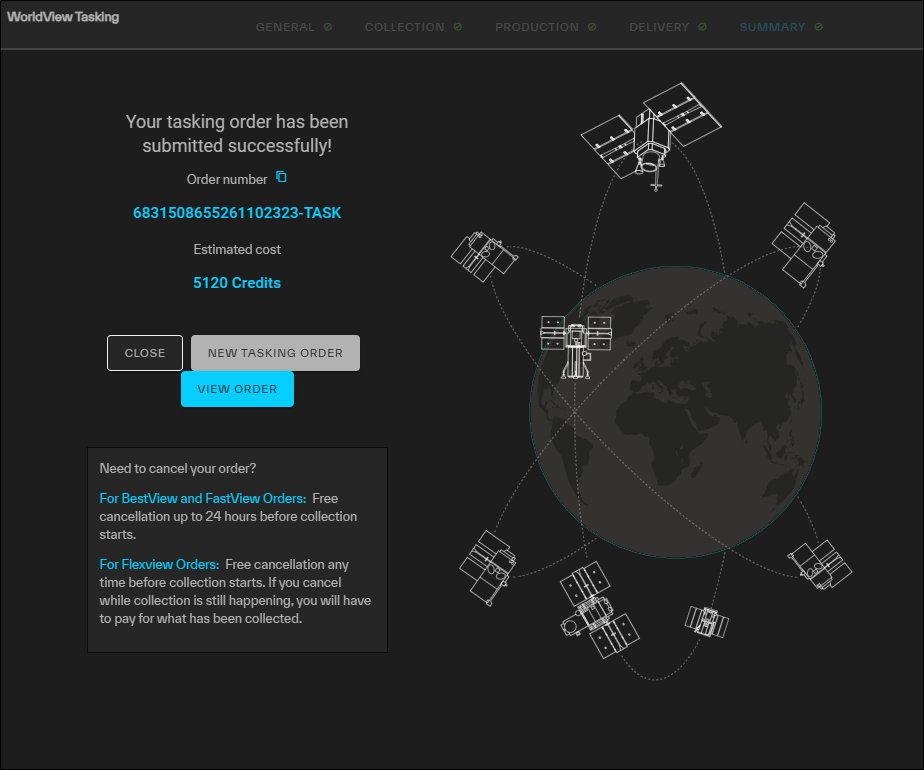
The Confirmation page for tasking requests.
-
More About Tasking
-
Successful collects are available to all customers via the archive catalog. Collects are also available in the online catalog if daily take requirements are met.
-
Tasking request scheduling and satisfaction are based on a number of factors, such as the specific order parameters, length of collection window, and regional competition or demand.
Upon acceptance of your tasking quote, the quoted number of credits are placed in escrow. The credits in escrow are metered against the credit plan limit after each successful collect (or partial collect). If your tasking time window expires and you have credits remaining in escrow, these credits are released.
To see how many credits you have in escrow, open the Orders panel. From the Order Type drop-down, select Tasking. The Total Pending Charges (displayed at the bottom of the page) show your current credits in escrow.
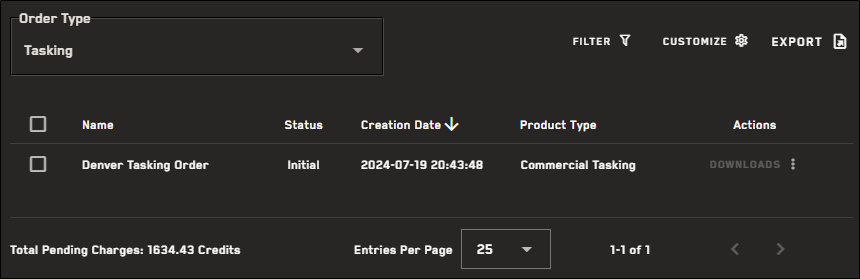
Your Total Pending Charges show how many credits are currently in escrow.
-
If your tasking request is denied, contact support@vantor.com.
-
For more information about tasking statuses, please see Tasking Statuses.