Ordering Vivid Terrain, WorldView 3D, and Raptor Products
You can order Vivid Terrain, WorldView 3D, and Raptor products from the Terrain panel.
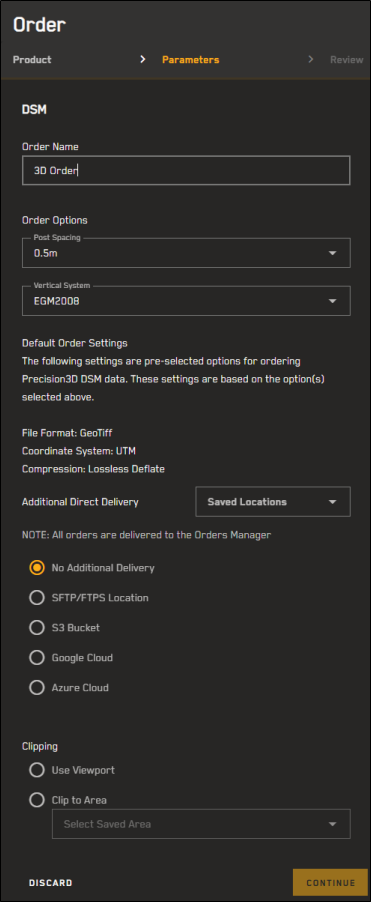
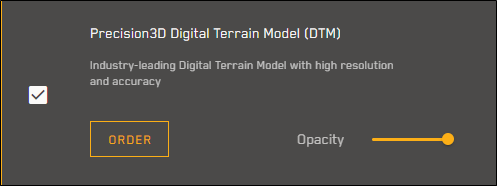
The Order panel, shown for the Vivid Terrain -Digital Terrain Model (DTM) product.
-
Select Terrain. The Vivid Terrain panel opens.
-
Select the Vivid Terrain product you want to order.
-
In the Vivid Terrain panel, select Order. The Order wizard opens.
The Order button does not display in the Vivid Terrain panel until you select a Vivid Terrain product.
-
In the Order Name field, enter a name for the order.
-
Complete each section to define your order.
 Order Options and Default Order Settings
Make selections to define your order.
Expand the drop-downs below to view the order options and default order settings available for each Vivid Terrain product.
Vivid Terrain - Digital Terrain Model (DTM)
The following order options and default order settings apply to the Vivid Terrain - Digital Terrain Model (DTM).
Order Options Available Settings Post Spacing -
0.5 m (default)
-
1.0 m
-
2.0 m
-
4.0 m
Vertical System -
EGM2008 (default)
-
EGM98
-
Ellipsoid
Order Settings Default File Format GeoTiff Compression Lossless Deflate Coordinate System UTM Vivid Terrain - Digital Surface Model (DSM)
The following order options and default order settings apply to the Vivid Terrain - Digital Surface Model (DSM).
Order Options Available Settings Post Spacing -
0.5 m (default)
-
1.0 m
-
2.0 m
-
4.0 m
Vertical System -
EGM2008 (default)
-
EGM98
-
Ellipsoid
Order Settings Default File Format GeoTiff Compression Lossless Deflate Coordinate System UTM Vivid Terrain - Elevation Bundle (DTM + DSM)
The following order options and default order settings apply to the Vivid Terrain - Elevation Bundle (DTM + DSM) product.
Order Options Available Settings Post Spacing -
0.5 m (default)
-
1.0 m
-
2.0 m
-
4.0 m
Vertical System -
EGM2008 (default)
-
EGM98
-
Ellipsoid
Order Settings Default File Format GeoTiff Compression Lossless Deflate Coordinate System UTM Vivid Terrain - 3D Surface Model (3DSM)
Default order settings for the Vivid Terrain - 3D Surface Model (3DSM) are dependent on the file format you select.
FIle Format: 3D Tiles 1.1 (Cesium)
Order Settings Default Post Spacing 0.5 m Reference System WGS84 G1674 Coordinate System Geocentric (ECEF) Vertical System N/A FIle Format: r3DB
Order Settings Default Post Spacing 0.5 m Reference System WGS84 G1674 Coordinate System UTM Vertical System Ellipsoid FIle Format: Collada
Order Settings Default Post Spacing 0.5 m Reference System WGS84 G1674 Coordinate System UTM Vertical System Ellipsoid FIle Format: 13S 1.8 (ESRI)
Order Settings Default Post Spacing 0.5 m Reference System WGS84 G1674 Coordinate System Geodetic Vertical System EGM96 Vivid Terrain - True Ortho
The following default order settings apply to the Vivid Terrain - True Ortho product.
Order Settings Default Post Spacing 0.5 m File Format GeoTiff Reference System WGS84 G1674 Coordinate System UTM Compression Lossless Deflate Vivid Terrain - 3D Bundle (3DSM + DSM + True Ortho)
The Vivid Terrain - 3D Bundle contains three different products. Settings are pre-selected for each product included in the bundle, and are based on the file format you select.
FIle Format: 3D Tiles 1.1 (Cesium)
Order Settings Vivid Terrain - 3D Surface Model (3DSM)
Default
True Ortho
Default
Vivid Terrain - Digital Surface Model (DSM)
Default
Post Spacing 0.5 m 0.5 m 0.5 m Reference System WGS84 G1674 WGS84 G1674 WGS84 G1674 Coordinate System Geocentric (ECEF) UTM UTM Vertical System N/A N/A EGM2008 File Format 3D Tiles 1.1 (Cesium) GeoTiff GeoTiff FIle Format: R3DB
Order Settings Vivid Terrain - 3D Surface Model (3DSM)
Default
True Ortho
Default
Vivid Terrain - Digital Surface Model (DSM)
Default
Post Spacing 0.5 m 0.5 m 0.5 m Reference System WGS84 G1674 WGS84 G1674 WGS84 G1674 Coordinate System UTM UTM UTM Vertical System Ellipsoid N/A Ellipsoid File Format R3DB GeoTiff GeoTiff FIle Format: Collada
Order Settings Vivid Terrain - 3D Surface Model (3DSM)
Default
True Ortho
Default
Vivid Terrain - Digital Surface Model (DSM)
Default
Post Spacing 0.5 m 0.5 m 0.5 m Reference System WGS84 G1674 WGS84 G1674 WGS84 G1674 Coordinate System UTM UTM UTM Vertical System Ellipsoid N/A Ellipsoid File Format Collada GeoTiff GeoTiff FIle Format: 13S 1.8 (ESRI)
Order Settings Vivid Terrain - 3D Surface Model (3DSM)
Default
True Ortho
Default
Vivid Terrain - Digital Surface Model (DSM)
Default
Post Spacing 0.5 m 0.5 m 0.5 m Reference System WGS84 G1674 WGS84 G1674 WGS84 G1674 Coordinate System Geodetic UTM UTM Vertical System EGM96 N/A EGM96 File Format 13S 1.8 (ESRI) GeoTiff GeoTiff Vivid Terrain - Buildings
The following order options and default order settings apply to Vivid Terrain - Buildings.
Order Options Available Settings Level of Detail -
Non-height Segmented(default)
- Height Segmented
Vertical System -
EGM2008 (default)
-
EGM98
-
Ellipsoid
Order Settings Default File Format ESRI Shape Reference System WGS84 G1674 Coordinate System UTM Vivid Terrain - Classification
The following order options and default order settings apply to Vivid Terrain - Classification.
Order Options Available Settings Post Spacing -
0.5 m (default)
-
1.0 m
-
2.0 m
-
4.0 m
Order Settings Default File Format GeoTiff Reference System WGS84 G1674 Coordinate System UTM Compression Lossless Deflate Vivid Terrain - DHM
The following order options and default order settings apply to the Vivid Terrain - DHM.
Order Options Available Settings Post Spacing -
0.5 m (default)
-
1.0 m
-
2.0 m
-
4.0 m
Vertical System -
EGM2008 (default)
-
EGM98
-
Ellipsoid
Order Settings Default File Format GeoTiff Reference System WGS84 G1674 Coordinate System UTM Compression Lossless Deflate Vivid Terrain - Point Cloud
The following order options and default order settings apply to the Vivid Terrain - Point Cloud.
Order Options Available Settings Vertical System -
EGM2008 (default)
-
EGM98
-
Ellipsoid
File Format -
LAZ (default)
-
LAS
Order Settings Default Sampling Density 4 Points/m2 Reference System WGS84 G1674 Coordinate System UTM Vivid Terrain - Vegetation
The following order options and default order settings apply to Vivid Terrain - Vegetation.
Order Options Available Settings Cut by Building Vectors -
True (default)
-
False
Vertical System -
EGM2008 (default)
-
EGM98
-
Ellipsoid
Vegetation Representation -
Stacked (default)
-
Non-stacked
Order Settings Default File Format ESRI Shape Reference System WGS84 G1674 Coordinate System UTM Vertical Threshold 2 m WorldView 3D On-Demand Suite
Order options and default order settings for the WorldView 3D On-Demand Suite are dependent on the On-Demand Product you select.
Product: DSM
Order Options Available Settings Vertical System -
Ellipsoid (default)
-
EGM98
-
EGM2008
Fill Shadows -
True (default)
-
False
Order Settings Default Post Spacing 0.5 m File Format GeoTIFF Reference System WGS84 G1674 Coordinate System UTM Compression Deflate Product: 3DSM
Order Options Available Settings Fill Shadows -
True (default)
-
False
Order Settings Default File Format 3DTiles 1.1 Reference System WGS84 G1762 Coordinate System Geocentric (ECEF) Product: Bundle
The WorldView 3D Bundle delivers WorldView 3D 3DSM, Rapid 3D DSM, and WorldView 3D True Ortho. WorldView 3D 3DSM and WorldView 3D DSM are delivered with the order settings above, while WorldView 3D True Ortho delivers with the order settings below.
Order Options Available Settings Fill Shadows -
True (default)
-
False
Order Settings Default Post Spacing 0.5 m File Format GeoTIFF
3DTiles 1.1
Reference System WGS84 G1674 Coordinate System UTM Compression Deflate More Information: Definitions
-
Compression The compression option for packaging files.
-
Coordinate System The projection type, which defines how satellite imagery is mapped to the earth.
-
File Format The output format for image delivery.
-
Post Spacing The distance between points on the elevation grid.
-
Reference System A global datum, used for determining positions on the Earth's surface.
-
Vertical System The vertical coordinate system to define the origin of the height.
Additional
By default, all orders are delivered to the Orders Manager.
If you want to send your order to an additional file transfer location, select your desired location.
Options
-
No Additional Delivery (Default)
-
-
(Optional) If you want to use a previously saved location for the order, select it from the Saved Locations drop-down.
-
Select your protocol, then enter your credentials, host, port, and directory.
-
To verify the connection, select Test Connection.
A successful connection test is required to save the location and to
-
(Optional) To save the location to use again later, select Save as Location. The location is added to the Saved Locations drop-down.
-
-
-
(Optional) If you want to use a previously saved location for the order, select it from the Saved Locations drop-down.
-
Enter your S3 bucket, folder, region, IAM access key, secret access key, and optional session token.
-
Use the Session Token field if you have a temporary STS token.
-
For regular access keys, leave the Session Token field blank.
Be aware that STS tokens are valid for a maximum of 12 hours. As such, STS tokens are best suited for manually sending an order to an additional location after the initial order has been completed.
Your S3 bucket must be in the AWS commercial cloud.
-
-
To verify the connection, select Test Connection.
A successful connection test is required to save the location and to
-
(Optional) To save the location to use again later, select Save as Location. The location is added to the Saved Locations drop-down.
-
-
-
(Optional) If you want to use a previously saved location for the order, select it from the Saved Locations drop-down.
-
Enter your service key, bucket, and folder.
To select a service key from a location on your computer, select the paperclip
 .
. -
To verify the connection, select Test Connection.
A successful connection test is required to save the location and to
-
(Optional) To save the location to use again later, select Save as Location. The location is added to the Saved Locations drop-down.
-
-
-
(Optional) If you want to use a previously saved location for the order, select it from the Saved Locations drop-down.
-
Enter your connection string, bucket, and folder.
To configure your connection string, see https://learn.microsoft.com/en-us/azure/storage/common/storage-configure-connection-string.
Setting examples:
Connection String:
DefaultEndpointsProtocol=https;AccountName=[your account name];AccountKey=[your account key]==;EndpointSuffix=core.windows.net
Bucket:
[your bucket]
Folder:
[your folder]
-
To verify the connection, select Test Connection.
A successful connection test is required to save the location and to
-
(Optional) To save the location to use again later, select Save as Location. The location is added to the Saved Locations drop-down.
-
-
-
(Optional) If you want to use a previously saved location for the order, select it from the Saved Locations drop-down.
-
Clipping
-
Select how you would like to clip the ordered area.
Options
-
-
To draw an AOI for the current viewport, select Re-Define.
-
To automatically zoom to the largest allowable clipped area, select Max Fit.
-
To automatically zoom to the smallest allowable clipped area, select Min Fit.
Min Fit and Max Fit create areas based on center of the current viewport. Use the Re-Define, zoom and pan, and search tools to roughly select your desired location before using either of these zoom options.
-
-
-
The search drop-down displays up to 25 saved areas. Selecting an area draws the AOI on the map and recalculates the order price for the selected area.
If you try to place an order using an area that intersects with a georestricted location, you will receive an error.
-
The estimated clipping area (in sq km) displays below the Clipping section, and updates when you make a selection.
When ordering analytics data, the clipped area must be smaller than 10,000 sq km.
When ordering Vivid Terrain products, the clipped area must be larger than 10 sq km and smaller than 500,000 sq km.
When ordering imagery, the clipped area must be smaller than 500,000 sq km.
When ordering Vivid Mosaics, the clipped area must be larger than 0.1 sq km and smaller than 500,000 sq km.
Select Min Fit or Max Fit to automatically zoom to an AOI that fits the smallest (min) or largest (max) allowable clipped area.
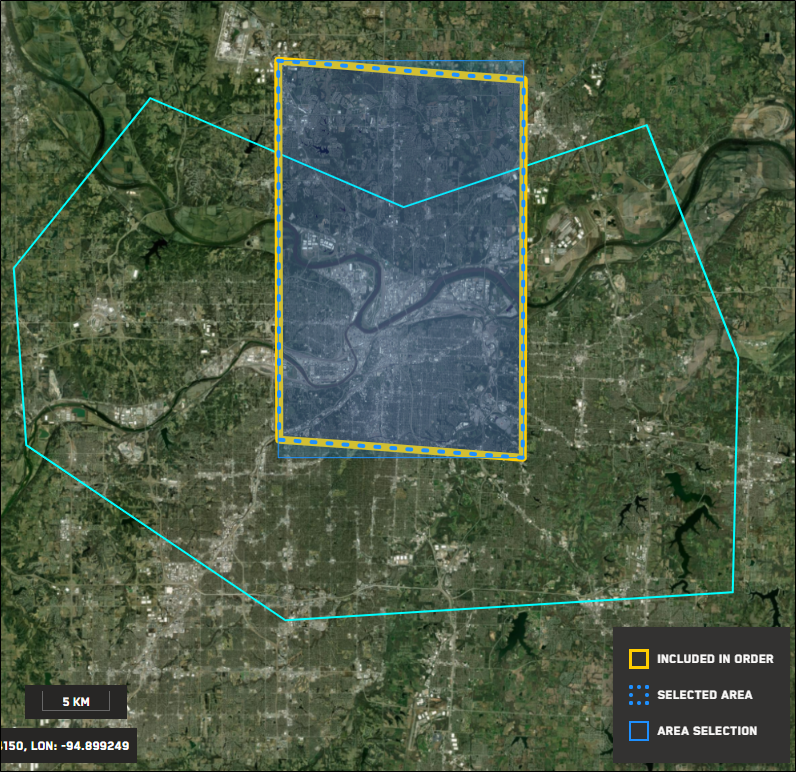
Vivid Mosaics do not have full coverage. If there is not Vivid Mosaics coverage in your defined area, an error displays, alerting you that there is no content in the area. You will not be charged for an area where there is no coverage.
Likewise, if there is only partial Vivid Mosaics coverage over your defined area, you will only be charged for the areas where there is coverage.

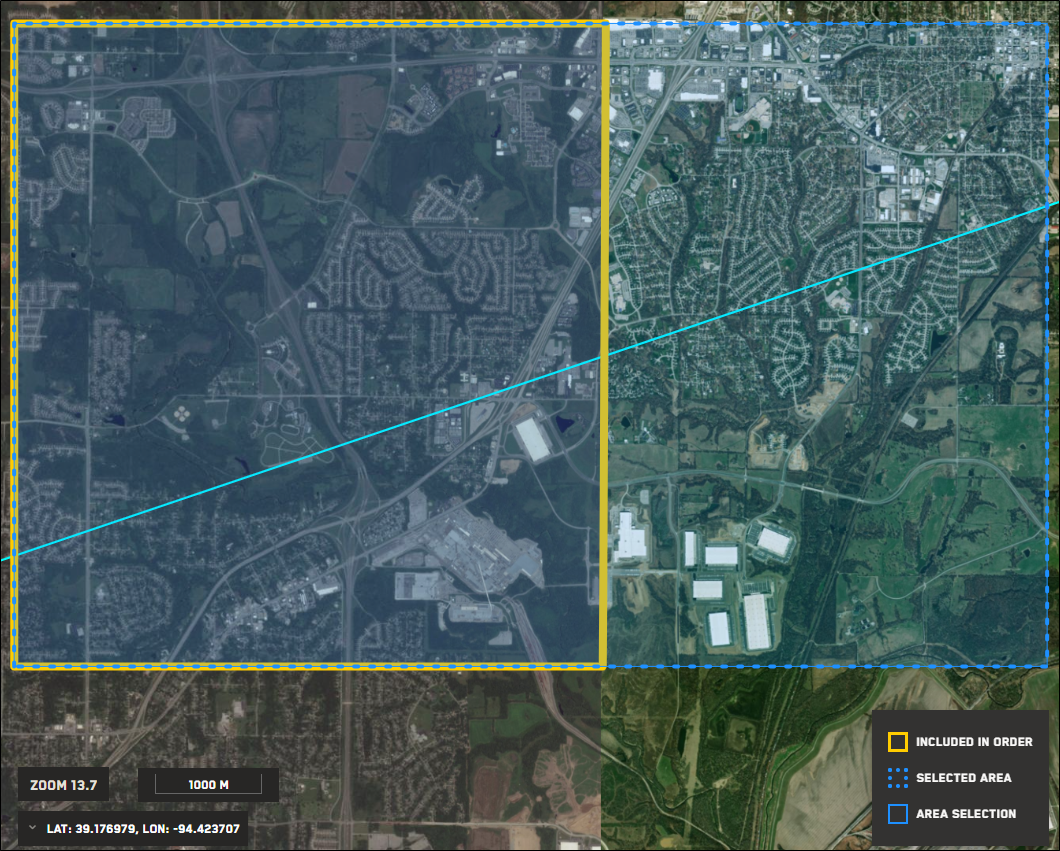
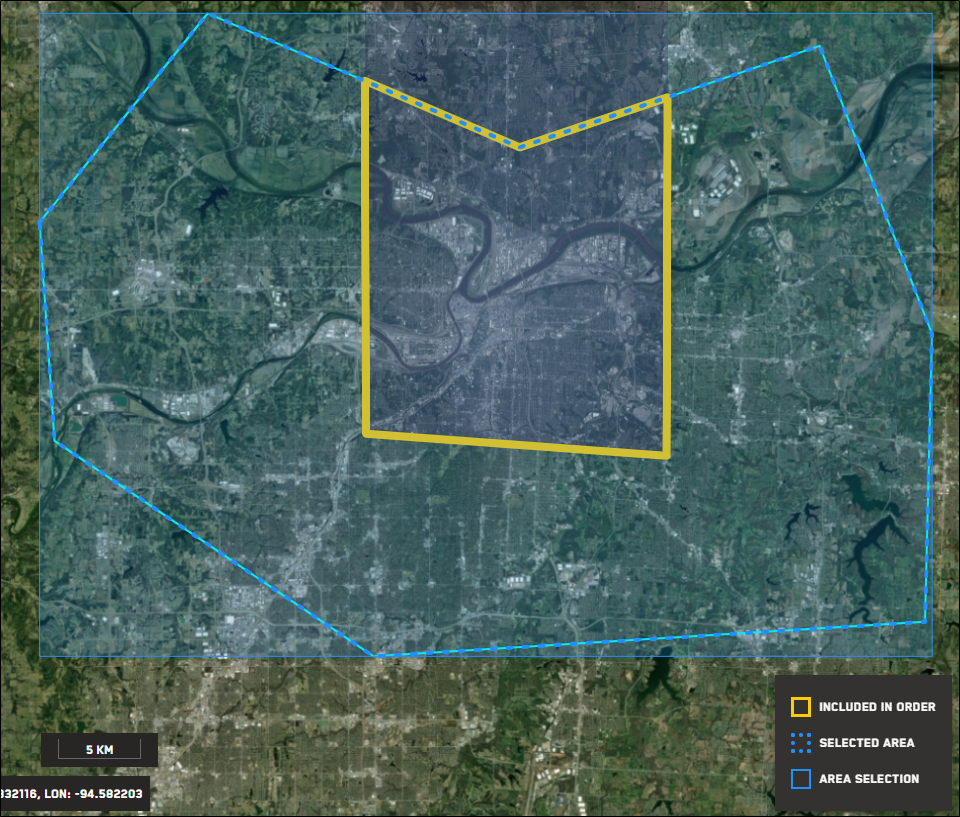
In this image, there are four small Vivid Mosaic coverage areas, despite a large clipping area selection. As shown in the legend, only the four Vivid Mosaic coverage areas are included in the order.
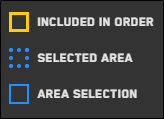
Use the legend to identify the clipping area included in your order. This area may change as you select different clipping options.
This image shows the order clipped to image strip...
then re-defined and clipped to the viewport...
and finally, clipped to the area.
Price
As you make and update order selections, the Price section displays a real-time quote.
-
Review the quote.
In these two images, the clipping area affects the total charge because the number of units (sq km) has changed.
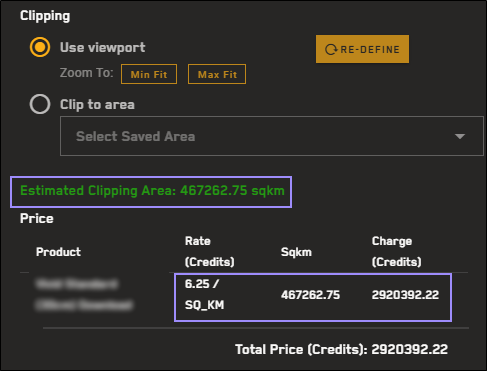
This order is based on the Max Fit of the viewport, and costs 2594.105 credits.
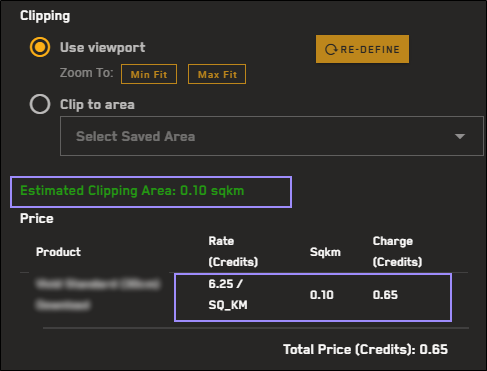
This order is based on the Min Fit of the viewport, and costs 13.614 credits.
Note that rates shown here are for illustrative purposes only. They are not applicable to all imagery products, and they may not reflect rates in your instance of Hub.
-
-
Select Continue.
Additional Steps for WorldView 3D Products only
-
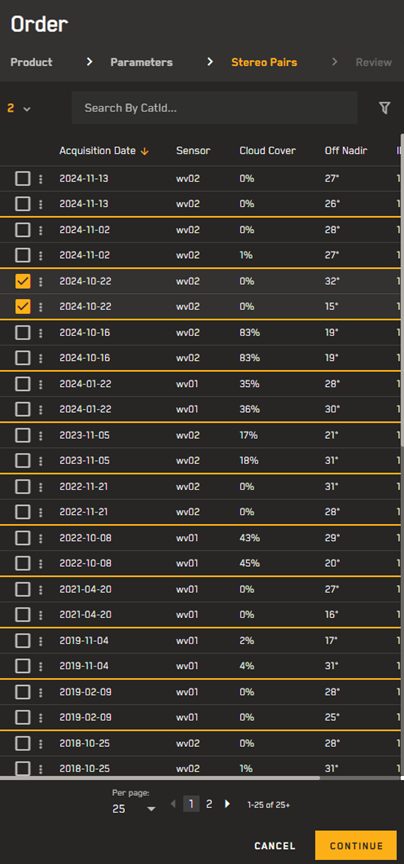
Select the appropriate Stereo Pairs from the Archive Imagery Catalog for your order.
Only imagery from WV01, WV02, WV03, and WorldView Legion are currently supported.
-
Select Continue.
-
-
In the confirmation dialog, check that the order looks correct, then select Place Order.
-
After placing the order, a final confirmation displays your order ID, order name, order date, your order's options, and the total number of credits charged. Select Place Order to finish placing your order or Cancel to make edits.
A final confirmation displays your order ID, order name, and order date. Select OK.
Track an order's status and download completed orders in the Orders panel. Orders expire after two weeks. See Orders.
After you submit your order, you will receive a confirmation email. You will also receive an email when the order succeeds or fails.
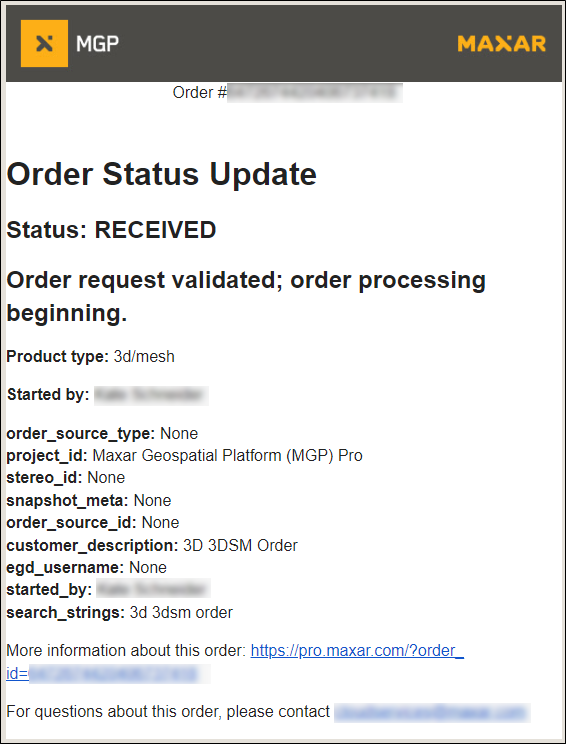
An example of an order status email.
More About Ordering Vivid Terrain, WorldView 3D, and Raptor Products
-
All Vivid Terrain orders are delivered to the Orders Manager.
-
After you order (and download) your Vivid Terrain elevation data, you can import it into other software to interpret the data.
-
When ordering Raptor products, the product is always encrypted.