Viewing Vivid Terrain Products
You can view Vivid Terrain products in Hub. Vivid Terrain products display on top of the standard basemap and any imagery that you have selected in the Imagery panel.
Toggling Vivid Terrain Products
Vivid Terrain products are off by default. If you want to turn on Vivid Terrain products, do the following:
-
Expand
 the left-side navigation panel.
 -
Select the Terrain visibility icon.


If Vivid Terrain products are hidden, selecting a Vivid Terrain product automatically displays it in the viewport. Likewise, clearing your Vivid Terrain product selection automatically hides the layer.
Selecting a Vivid Terrain Product
-
Select Terrain. The Vivid Terrain panel opens.
-
Select the 3D coverage layer you want to view. The viewport refreshes to apply the coverage layer.
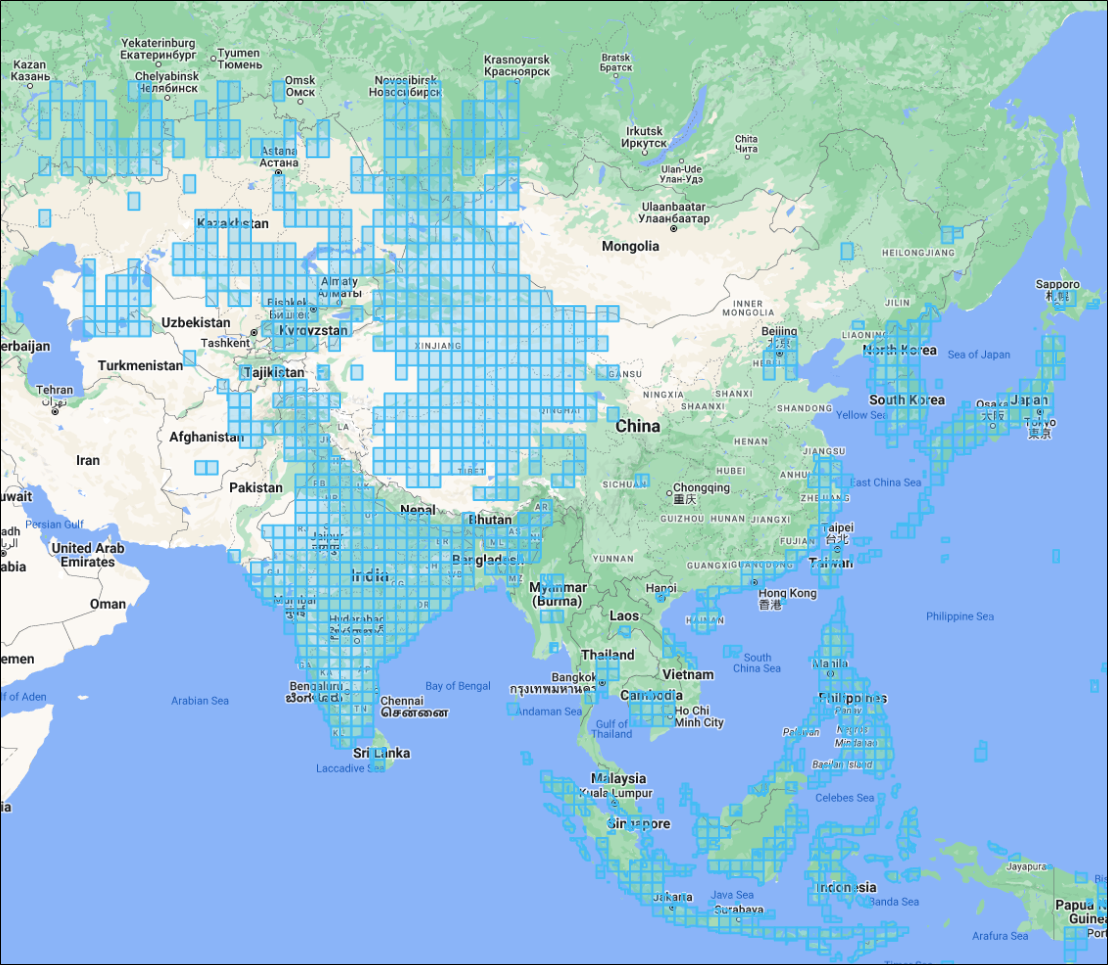
An example of a Precision3D coverage layer.
 Available Vivid Terrain Products
Name Description Accuracy Available Post Spacing Coverage Areas Vivid Terrain - Digital Terrain Model (DTM) Describes the elevation of the bare earth in a raster format. It is based on the Vivid Terrain Digital Surface Model (DSM) with trees and man-made objects (e.g., houses) removed by automated processing. The data represents the average elevation in the Post Spacing area. Absolute: 3 m LE90
3 m CE90
0.5 m
1.0 m
2.0 m
4.0 m
Hundreds of major cities and high-interest areas around the world. Vivid Terrain - Digital Surface Model (DSM) Describes the elevation of the earth surface in a raster format. The data represents the average elevation in the Post Spacing area. Absolute: 3 m LE90
3 m CE90
0.5 m
1.0 m
2.0 m
4.0 m
Hundreds of major cities and high-interest areas around the world. Vivid Terrain - Elevation Bundle Includes Vivid Terrain Digital Terrain Model (DTM) and Vivid Terrain Digital Surface Model (DSM). Absolute: 3 m LE90, 3 m CE90 0.5 m
1.0 m
2.0 m
4.0 m
Hundreds of major cities and high-interest areas around the world. Our most accurate representation of Earth in 3D with textures on all sides. Absolute: 3 m LE90, 3 m CE90 0.5 m Hundreds of major cities and high-interest areas around the world. A seamless true orthographic projection of Earth with the texture (natural color) in a raster format. Absolute: 3 m LE90, 3 m CE90 0.5 m Hundreds of major cities and high-interest areas around the world. Includes Vivid Terrain 3D Surface Model (3DSM), Vivid Terrain Digital Surface Model (DSM), and Vivid Terrain True Ortho. Absolute: 3 m LE90, 3 m CE90 0.5 m Hundreds of major cities and high-interest areas around the world. Describes the footprint and superstructures of buildings in a vector format with height attribution for a 3D representation. The vectors are automatically extracted from the Vivid Terrain 3D Surface Model. N/A Hundreds of major cities and high-interest areas around the world. Describes the type of terrain class in a raster format. This type of product is sometimes referred to as land use/land cover or clutter classification data. The classification data is automatically extracted from the Vivid Terrain 3D Surface Model. N/A Hundreds of major cities and high-interest areas around the world. Describes the above-ground difference between the Vivid Terrain DSM and Vivid Terrain DTM in a raster format, including buildings and vegetation which were removed in the process of creating the Vivid Terrain DTM. N/A Hundreds of major cities and high-interest areas around the world. Describes the earth's surface form and texture (natural color) in industry standard point cloud formats. N/A Hundreds of major cities and high-interest areas around the world. Describes the vegetation footprint in a vector format with height attribution for a 3D representation. The vectors are automatically extracted from the Vivid Terrain 3D Surface Model. N/A Hundreds of major cities and high-interest areas around the world. Vantor's on-demand suite of three-dimensional surface mesh, elevation, and true ortho products that correspond to specific collection dates. WorldView 3D leverages photogrammetric stereo collections that are correlated and enhanced by Vantor’s global Vivid Terrain 3D Surface Model.
WorldView 3D 3DSM
WorldView 3D 3DSM consists of a TIN mesh, which describes the form of the surface of the Earth, and an associated texture, which describes the appearance of the surface, either as panchromatic or natural color, depending on sensor used for image collection. The density of the mesh is irregular, with a higher density in areas and surfaces that are more complex, and sparser in areas that are flat. All other WorldView 3D data products are derived from the WorldView 3D 3D surface model. This assures that there is nearly zero alignment error between the different WorldView 3D data products.
WorldView 3D DSM
WorldView 3D DSM describes the elevation of the Earth’s surface in a raster format. The data represents the average elevation in the post spacing area.
WorldView 3D Bundle
WorldView 3D Bundle includes WorldView 3D 3D Surface Model (3DSM), WorldView 3D Digital Surface Model (DSM), and WorldView 3D True Ortho. The WorldView 3D True Ortho describes the texture (panchromatic or natural color) of a seamless true orthographic projection of the Earth in a raster format; it is only available as part of the WorldView 3D Bundle.
Absolute: 4 m LE90, 4 m CE90 0.5 m Hundreds of major cities and high-interest areas around the world. Product accuracy shown above is measured at 0.5 m post spacing.
Name Description Vivid Terrain - Digital Terrain Model (DTM) Describes the elevation of the bare earth in a raster format. It is based on the Vivid Terrain Digital Surface Model (DSM) with trees and man-made objects (e.g., houses) removed by automated processing. The data represents the average elevation in the Post Spacing area. Vivid Terrain - Digital Surface Model (DSM) Describes the elevation of the earth surface in a raster format. The data represents the average elevation in the Post Spacing area. Vivid Terrain - Elevation Bundle Includes Vivid Terrain Digital Terrain Model (DTM) and Vivid Terrain Digital Surface Model (DSM). Our most accurate representation of Earth in 3D with textures on all sides. A seamless true orthographic projection of Earth with the texture (natural color) in a raster format. Includes Vivid Terrain 3D Surface Model (3DSM), Vivid Terrain Digital Surface Model (DSM), and Vivid Terrain True Ortho. Describes the footprint and superstructures of buildings in a vector format with height attribution for a 3D representation. The vectors are automatically extracted from the Vivid Terrain 3D Surface Model. Describes the type of terrain class in a raster format. This type of product is sometimes referred to as land use/land cover or clutter classification data. The classification data is automatically extracted from the Vivid Terrain 3D Surface Model. Describes the above-ground difference between the Vivid Terrain DSM and Vivid Terrain DTM in a raster format, including buildings and vegetation which were removed in the process of creating the Vivid Terrain DTM. Describes the earth's surface form and texture (natural color) in industry standard point cloud formats. Describes the vegetation footprint in a vector format with height attribution for a 3D representation. The vectors are automatically extracted from the Vivid Terrain 3D Surface Model. Vantor's on-demand suite of three-dimensional surface mesh, elevation, and true ortho products that correspond to specific collection dates. WorldView 3D leverages photogrammetric stereo collections that are correlated and enhanced by Vantor’s global Vivid Terrain 3D Surface Model.
WorldView 3D 3DSM
WorldView 3D 3DSM consists of a TIN mesh, which describes the form of the surface of the Earth, and an associated texture, which describes the appearance of the surface, either as panchromatic or natural color, depending on sensor used for image collection. The density of the mesh is irregular, with a higher density in areas and surfaces that are more complex, and sparser in areas that are flat. All other WorldView 3D data products are derived from the WorldView 3D 3D surface model. This assures that there is nearly zero alignment error between the different WorldView 3D data products.
WorldView 3D DSM
WorldView 3D DSM describes the elevation of the Earth’s surface in a raster format. The data represents the average elevation in the post spacing area.
WorldView 3D Bundle
WorldView 3D Bundle includes WorldView 3D 3D Surface Model (3DSM), WorldView 3D Digital Surface Model (DSM), and WorldView 3D True Ortho. The WorldView 3D True Ortho describes the texture (panchromatic or natural color) of a seamless true orthographic projection of the Earth in a raster format; it is only available as part of the WorldView 3D Bundle.
Product accuracy shown above is measured at 0.5 m post spacing.
-
(Optional) Adjust the selected coverage layer's opacity using the Opacity slider.
-
To close the 3D panel, select 3D again.
Viewing Vivid Terrain Metadata
After you select a coverage layer, you can view the metadata for 3D coverage features in the viewport.
-
Select the 3D coverage layer you want to view.
-
Select any coverage feature to see more details about the 3D feature in that area, such as its CatID, first and last acquisition data and time, block type, and resolution.
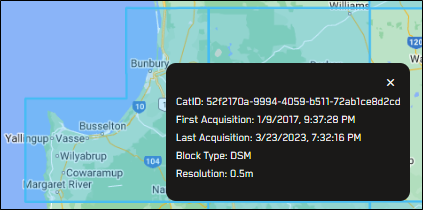
Metadata for a Precision3D feature.
More About Viewing Vivid Terrain Products
-
You can only view one 3D coverage layer at a time. If you select a new 3D product in the 3D panel, the coverage layer for that product displays in the viewport.