Creating a Mashup
You can create and order mashups, which are multi-image mosaics consisting of all stacked imagery in a project.
The maximum size for a mashup is 100,000 sq km.
Online image ordering supports the following sensors:
-
GeoEye-1
-
WorldView-1
-
WorldView-2
-
WorldView-3 VNIR
-
WorldView-4
-
WorldView Legion (1-6)
At this time, the following sensors are not supported:
-
IKONOS
-
QuickBird
-
WorldView-3 SWIR
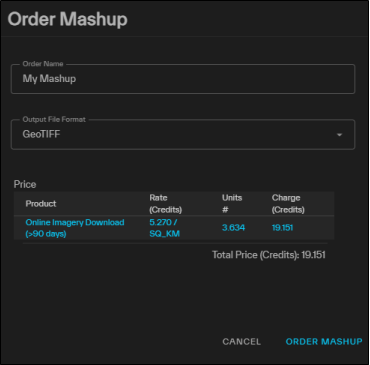
The Order Mashup panel.
-
Select the Project Menu
 , then select Order Mashup. The Order Mashup panel opens.
You can select the Project Menu
from the main Project panel or from the expanded Projects interface. See Overview: Projects. -
In the Order Name field, enter a name for the order.
-
From the Output File Format drop-down, select the output format for mashup delivery.
-
(Optional) If you want to deliver the order to a Vantor-hosted SFTP server, select Deliver to SFTP. To connect to the server and locate your file, obtain your SFTP details on the Downloads tab of the Order Details page. Then you can access the server using any SFTP client. See Downloading Orders.
-
Select Order Mashup.
-
After placing the order, a final confirmation displays your order ID, order name, order date, your order's options, and the total number of credits charged. Select Place Order to finish placing your order or Cancel to make edits.
A final confirmation displays your order ID, order name, and order date. Select OK.
 Options
Track an order's status and download completed orders in the Orders panel. Orders expire after two weeks. See Orders.