Monitoring Projects
Create a monitor to receive an email notification when new imagery acquisitions intersecting
Creating Monitors
Create a monitor to receive a notification when new imagery acquisitions intersecting your
-
Select Projects. The Projects panel opens.
-
If you have not yet created a project, add an project over the part of the map you want to monitor. See Adding Projects.
-
Select the Project Menu
 , then select Create Monitor. The Create New Image Monitor panel opens.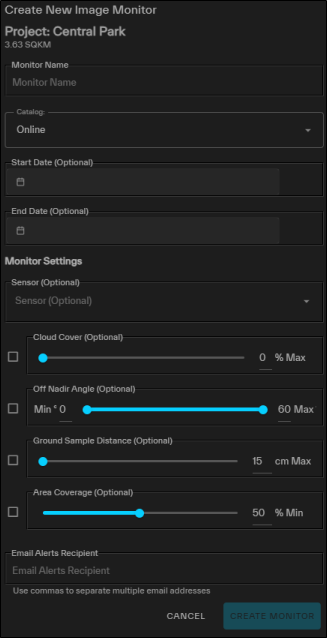
The Create New Image Monitor panel.
You can select the Project Menu
from the main Project panel or from the expanded Projects interface. See Overview: Projects.If you are working in an open project, you can also create a monitor by expanding the Monitors section, then selecting Create Monitor
 .
. -
In the fields, enter details about the monitor.
-
Monitor Name A name for the monitor.
The Monitor Name appears in monitor's email alerts. Although it is not required, you may want to use a unique name. You should also use a name that makes it easy to identify the monitor, especially if you have multiple monitors set.
-
Catalog (Default: Online) Select a catalog to monitor for new imagery acquisitions.
Projects are only available for online imagery.
-
Start Date (Optional) Use the calendar picker to select the date you want the system to begin monitoring for new imagery in
-
End Date (Optional) Use the calendar picker to select the date you want the system to stop monitoring for new imagery in
-
Monitor Settings (Optional) Add monitor filters to receive an alert if new imagery matches your filter settings. Imagery that does not match the filters will not trigger an alert. You can set the following filters:
-
Sensor
-
Cloud Cover (0% – 99%)
-
Off Nadir Angle (0° – 60°)
-
Ground Sample Distance (15 cm – 500 cm)
-
Area Coverage (1% – 100%)
When you change a filter's default settings, the checkbox next to the filter's name is automatically selected. If you want to remove a filter, clear the checkbox next to the filter's name.
-
-
Email Alerts Recipient Enter one or more email addresses to receive alerts when new imagery intersects
-
-
Select Create Monitor.
Viewing Monitors
To view details about your monitors, expand any project.
-
Select Projects. The Projects panel opens.
-
Next to the project whose monitors you want to view, select Open. The project opens.
-
Expand the Monitors section. The monitors associated with the project display.

An active monitor in a project, viewed in the Monitors section.
To see information about a monitor, hover over it. A pop-up displays the monitor's creation/last modified date, start and end dates, email recipients, and whether or not the monitor is currently active.
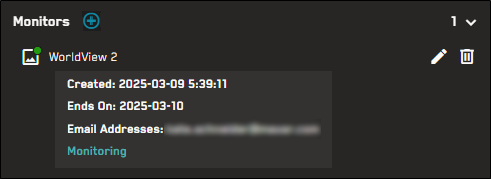
Hover over a monitor to view its details.
Editing Monitors
You can make changes to a monitor at any time.
-
Select Projects. The Projects panel opens.
-
Next to the project whose monitors you want to edit, select Open. The project opens.
-
Expand the Monitors section. The monitors associated with the project display.
An active monitor in a project.
-
Next to the monitor you want to edit, select Edit
 . The Editing Image Monitor panel opens.
 -
In the fields, edit the monitor name, start/end dates, filter criteria, and/or email alert recipients.
You can only edit future start dates (i.e., for inactive monitors).
The Catalog option is unavailable when editing existing monitors.
When you change a filter's default settings, the checkbox next to the filter's name is automatically selected. If you want to remove a filter, clear the checkbox next to the filter's name.
-
Select Save Changes. A confirmation notifies you that your monitor was successfully updated.
Deleting Monitors
If you no longer need a monitor, you can delete it.
-
Select Projects. The Projects panel opens.
-
Next to the project whose monitors you want to edit, select Open. The project opens.
-
Expand the Monitors section. The monitors associated with the project display.
An active monitor in a project.
-
Next to the monitor you want to delete, select Delete
 .
. -
A confirmation dialog asks if you want to delete the monitor. To delete the monitor, select Delete Monitor. Otherwise, select Cancel.
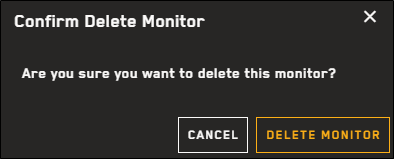
Deleting a monitor is permanent. You cannot recover a deleted monitor; if you want to use a deleted monitor again, you will need to recreate it.
More About Monitoring Projects
-
If you edit
-
Deleting