Overview: Imagery Panel
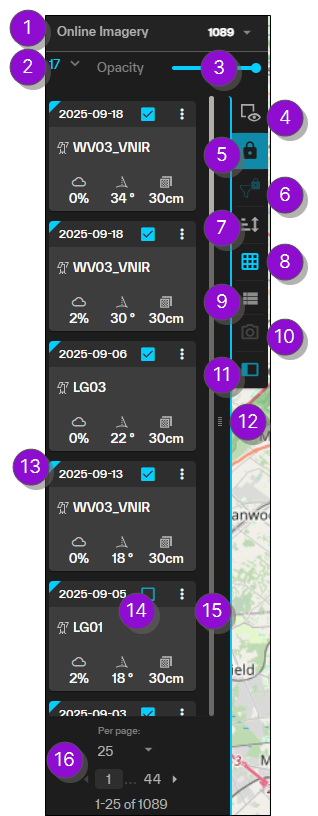
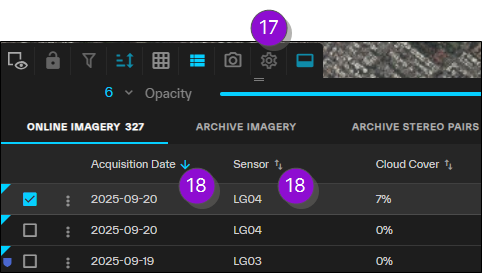
Use the overview images and corresponding table to locate tools in the Imagery panel.
| Numbered Area / Icon | Description | User Guide References | ||||||||
|---|---|---|---|---|---|---|---|---|---|---|
|
1 |
Select the imagery catalog you want to view in the Imagery panel. The catalog name and total number of available images display on each tab. |
|||||||||
|
2 Number of Imagery Selections / With Selected Menu |
The number of images that are currently selected. Select the drop-down arrow |
|||||||||
|
3 |
Adjust the opacity / transparency of images in the current imagery catalog. |
|||||||||
|
4
|
Open the Imagery Footprints menu and legend. | |||||||||
|
5
|
Lock or unlock the Imagery panel. The Imagery panel is unlocked by default. |
|||||||||
|
6
|
Open the Filters dialog. |
|||||||||
|
7
|
Open the Sort menu. |
|||||||||
|
8
|
Switches from list to card view. |
|||||||||
|
9
|
List view is the default view for the Imagery panel when viewing the archive imagery catalog. Switches from card to list view. |
|||||||||
|
10 Snapshot Tool
|
Use the Snapshot tool to capture a custom, close-up collage of online images as they appear in the viewport. |
|||||||||
|
11
|
By default, the Imagery panel displays along the left side of the interface. Select this icon to move the panel to the bottom or right side of the interface. |
|||||||||
|
12
|
Select and drag to resize the Imagery panel. |
|||||||||
|
13
|
Indicates that an image is available for exploit. |
|||||||||
|
14
|
Select one or more images. |
|||||||||
|
15
|
Open the Image Menu. |
|||||||||
|
16 |
Navigate between pages of imagery results and change the number of images displayed on each page of the Imagery panel.  More Information More Information
|
|||||||||
|
17 Settings
|
In list view, open the Toggle Attribute Visibility dialog to change the metadata attributes that you see in list view. |
|||||||||
|
18
|
In list view, sort a metadata column in ascending or descending order.
|
|||||||||
|
(not pictured) Information
|
Imagery is not available. May appear when:
|
 to open the
 /
/ 


 /
/  /
/ 
 /
/ 


| Numbered Area / Icon | Description | ||||||||
|---|---|---|---|---|---|---|---|---|---|
|
1 |
Select the imagery catalog you want to view in the Imagery panel. The catalog name and total number of available images display on each tab. |
||||||||
|
2 Number of Imagery Selections / With Selected Menu |
The number of images that are currently selected. Select the drop-down arrow |
||||||||
|
3 |
Adjust the opacity / transparency of images in the current imagery catalog. |
||||||||
|
4
|
Open the Imagery Footprints menu and legend. | ||||||||
|
5
|
Lock or unlock the Imagery panel. The Imagery panel is unlocked by default. |
||||||||
|
6
|
Open the Filters dialog. |
||||||||
|
7
|
Open the Sort menu. |
||||||||
|
8
|
Switches from list to card view. |
||||||||
|
9
|
List view is the default view for the Imagery panel when viewing the archive imagery catalog. Switches from card to list view. |
||||||||
|
10 Snapshot Tool
|
Use the Snapshot tool to capture a custom, close-up collage of online images as they appear in the viewport. |
||||||||
|
11
|
By default, the Imagery panel displays along the left side of the interface. Select this icon to move the panel to the bottom or right side of the interface. |
||||||||
|
12
|
Select and drag to resize the Imagery panel. |
||||||||
|
13
|
Indicates that an image is available for exploit. |
||||||||
|
14
|
Select one or more images. |
||||||||
|
15
|
Open the Image Menu. |
||||||||
|
16 |
Navigate between pages of imagery results and change the number of images displayed on each page of the Imagery panel. More Information
|
||||||||
|
17 Settings
|
In list view, open the Toggle Attribute Visibility dialog to change the metadata attributes that you see in list view. |
||||||||
|
18
|
In list view, sort a metadata column in ascending or descending order.
|
||||||||
|
(not pictured) Information
|
Imagery is not available. May appear when:
|